
Keep your business images ready for Facebook replies
Use Lurker’s image library to keep approved business photos close to the conversation. Choose a relevant image, prepare your reply, and decide what gets posted in Facebook.
Show the work behind your reply
A relevant photo can help explain the service you offer: a finished screen enclosure, a cleaned room, or an event setup. Keep images you have permission to use in your company library and approve the assets you want available to Lurker.
Image-library and reply-assistance features depend on your plan and workspace. Free and Watcher are keyword-only plans; connecting your own AI assistant does not add paid media features. Check current plans and your workspace’s Settings.
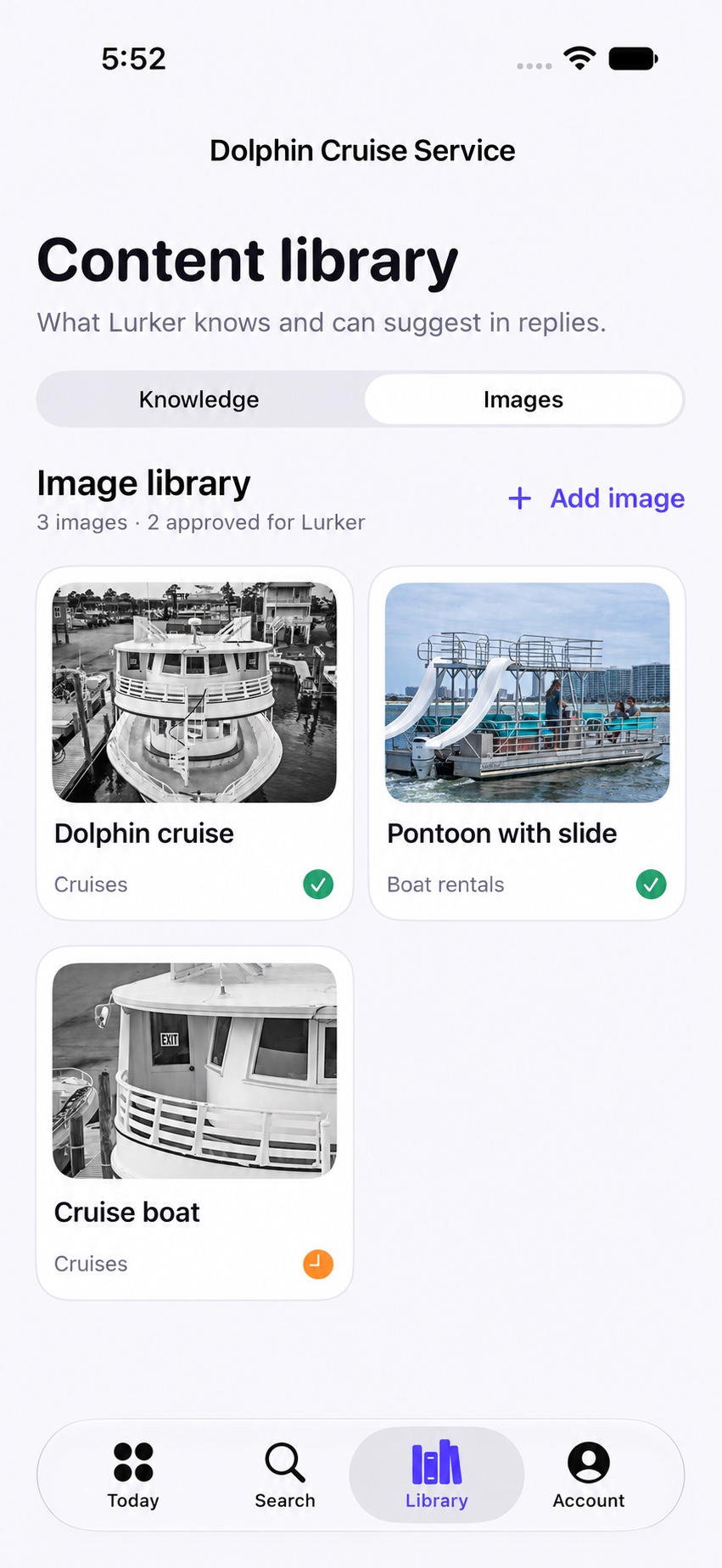
Build a useful approved-image library
- Open your workspace’s content library and select Images where your account supports it.
- Add images that represent your actual services and that you have permission to share.
- Review the image details, service associations, and tags. Approve the assets intended for Lurker.
- When reviewing an opportunity, check Suggested images and choose the one that fits the original post.
Suggestions use tag and service matching against approved company assets. The AI reply generator does not independently select the image, and not every opportunity has a matching asset. Always review it yourself.
Prepare a reply with an image on iPhone
- Open an opportunity and check the original Facebook context.
- Generate or edit your reply if your plan supports it. Choose a relevant Suggested image.
- Tap Prepare reply & open Facebook. On first use, allow add-only Photos access.
- Lurker saves the image to Photos, copies your edited text, and opens the original Facebook post.
- Paste the text, then use Facebook’s photo button to attach the saved image to the same comment draft.
- Review the text, photo, and group rules, then post it yourself.
These are native iPhone steps. Lurker does not automatically attach the photo or publish the comment. The Facebook post or group must support photo comments. You do not need to return to Lurker between pasting the reply and attaching the photo.
Find the conversation before choosing the photo
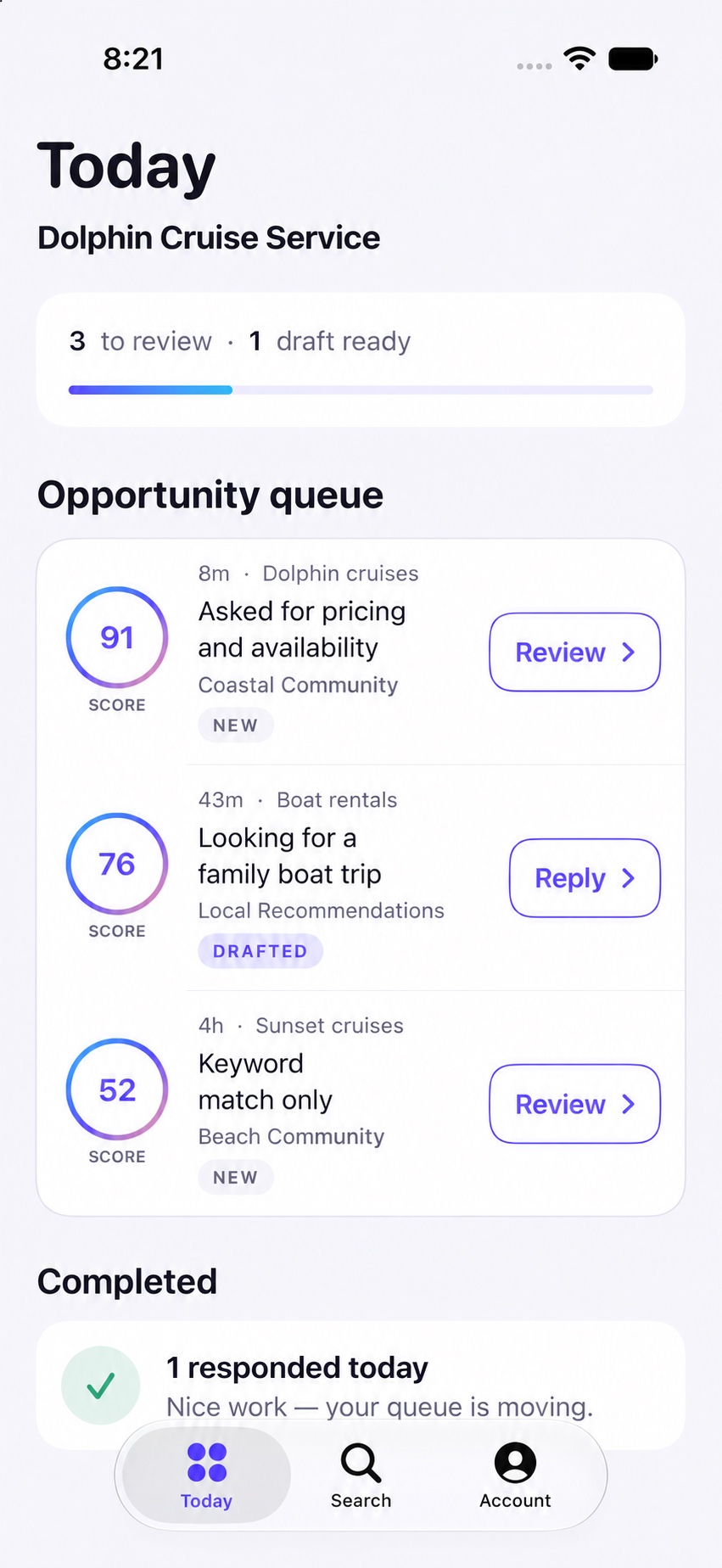
Read the opportunity and the source post before selecting media. A relevant photo supports your response; a suggested image is not proof that the person wants a sales message.
What if the image does not appear?
Use Refresh images if suggestions fail to load. An empty list can mean there is no matching approved asset. If Photos access was denied, allow Lurker to add photos in iPhone Settings. Add-only permission does not let Lurker read your photo library.
If Facebook has no photo button, use an appropriate text-only reply. Direct image paste is not universally supported. Each successful Prepare action saves another photo copy, so repeat only when needed.
Read iPhone troubleshooting · Watch the image-library tutorial · Image matching details