
How to set up and test Facebook group keyword alerts
Suppose you offer dolphin cruises and want to know when someone in a local Facebook group asks for a recommendation. Start with one group and one phrase a customer might actually type: dolphin cruise. You can check that Lurker is scanning before anyone happens to use that phrase.
Start one group watcher
- On the computer you’ll use for monitoring, sign in to Lurker or create a free account. Install the Lurker Chrome extension, then open it and confirm the workspace.
- In the extension’s Settings, add dolphin cruise under Local keywords and select Save keywords. Reopen the extension and check that the phrase is still there. Leave negative keywords empty for this first check so an exclusion doesn’t hide a useful match.
- In Chrome, sign in to Facebook and open a group you already have access to. Save and enable that group in Lurker. With the group tab selected, turn on Live watch this open group. Keep that Facebook tab open. You can close the extension popup.
- Open the watcher details for that group. Look for Active, note the Last heartbeat time, then refresh the status after about a minute. A later heartbeat tells you the watcher is reporting. Check Last scan, where shown, to see when it last examined the group.
Check your watcher from your iPhone
Open Account → Watchers and find the browser and group you started on your computer. Pull to refresh, then read Last successful scan on that watcher’s row. Collecting means a recent scan extracted items. Scanning · no items extracted means it scanned and came back empty. If the report is stale after your laptop went to sleep, wake it and reconnect the watcher in Chrome.
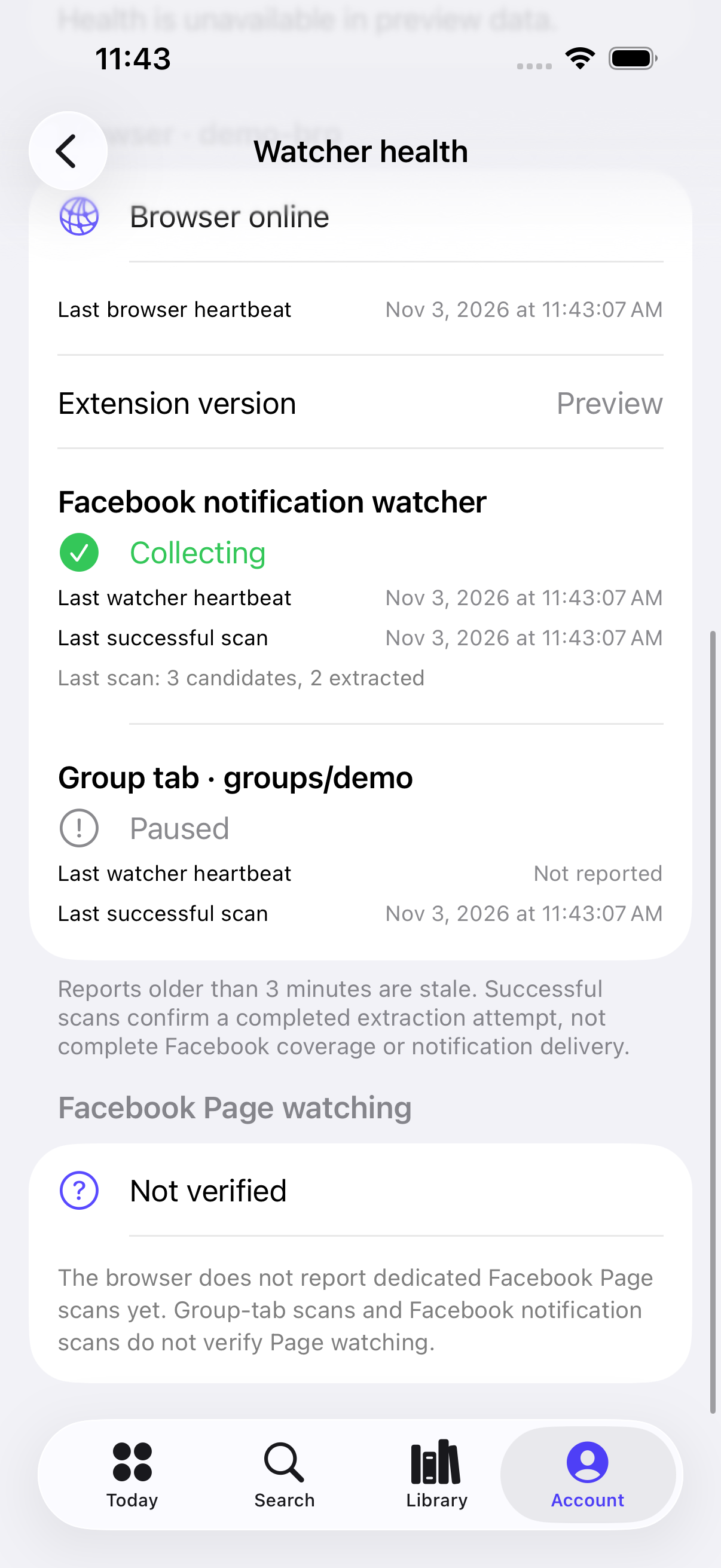
How do I know an alert actually works?
Follow a match through three separate checks. First, confirm the watcher for your chosen group is reporting and scanning. Next, when a matching post becomes visible, look for it in your Lurker review queue. Finally, if you want a device notification, check the notification settings available in your workspace and allow notifications on that device. Confirm delivery when a real matching opportunity arrives.
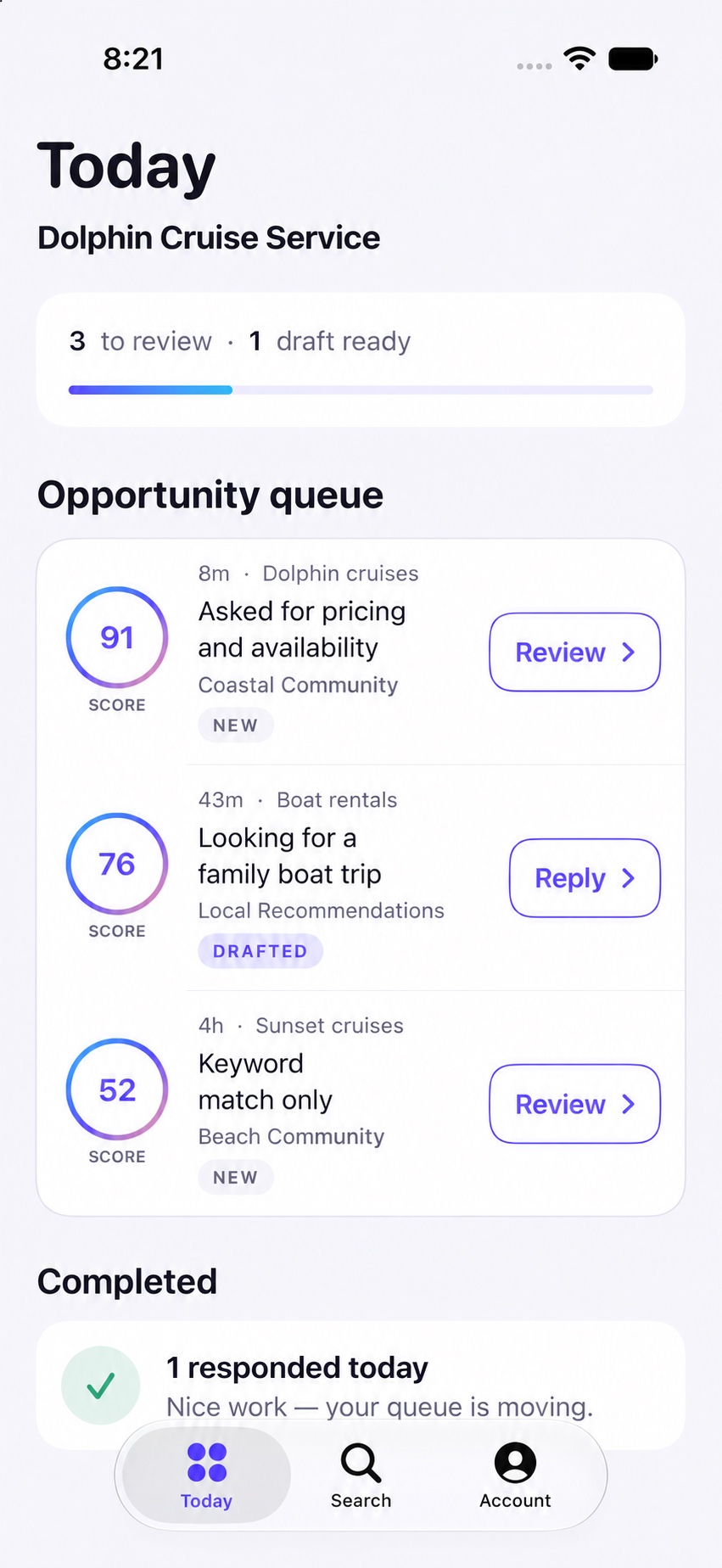
An empty queue can be normal while you’re waiting for someone to use your phrase. If you can see a relevant post but it never appears in the queue, compare its wording with your saved keywords, check any exclusions, and check the scan time for that group. For help choosing terms or understanding which posts Lurker can see, read the Facebook group keyword monitoring guide.
Can I turn off my screen while Lurker watches?
Yes. The screen can go dark while the computer stays awake. When the computer itself sleeps, Chrome pauses and Lurker can’t scan during that time. For a first session, plug in the laptop, leave the lid open, and choose how long you want to watch. You can keep your usual screen-lock settings.
- Mac laptop: Open System Settings → Battery → Options. If your Mac offers the option to prevent automatic sleep on power adapter when the display is off, turn it on for the monitoring session. The display can still turn off. Apple’s sleep settings guide
- Windows 11: Open Settings → System → Power & battery → Screen, sleep, & hibernate timeouts. Under plugged-in settings, set the device sleep timer long enough for your monitoring session. The screen-off timer can stay shorter. Microsoft’s power settings guide
After the computer has been idle for a while, check the watcher’s last scan again. When your monitoring session ends, restore your usual sleep setting. The iPhone app lets you review matches while you’re away from your desk; the computer running Chrome does the watching.
What do I do after my computer sleeps?
Wake the computer, return to the Facebook group tab, and confirm you’re still signed in. Refresh the group page, open Lurker, and select Reconnect watched tabs. If the group watcher has stopped, turn Live watch this open group back on. Check for a new heartbeat and scan on that group.
If you chose Facebook notification watching instead, return to the Facebook notifications tab and use Restart notification watcher when offered, or start it again if it stopped. For posts from the time the computer was asleep, a historical scan can review older posts that Facebook loads within your chosen limits. Coverage of that period can vary.