
How to monitor Facebook groups for keywords
Use Lurker’s Chrome extension to check visible Facebook group content for your keywords, save matching posts to one inbox, and decide when to reply yourself.
What Facebook group keyword monitoring does
Instead of manually checking every post, you choose groups and words relevant to your business. For example, a screen repair business might look for “screen repair” or “rescreen.” Lurker checks supported content Facebook makes visible in your own Chrome session and saves matches for review.
This is not a search of all Facebook content. You need access to each group, a running desktop watcher, and a human to check the original post. A match may be a customer request, an advertisement, or an unrelated conversation.
1. Start with one group you can already access
Create a free Lurker workspace, install the official Chrome extension, and sign in to Lurker. Sign in to Facebook yourself, then open a specific group’s page. In the extension, use Groups → Add by URL → Add current group tab. Confirm that the saved group is enabled.
You do not need to administer the group. For private groups, you must already have access through your own account. Lurker cannot join for you or bypass membership approval. Follow the group’s rules.
The Free plan supports five watched groups, five positive keywords, five negative keywords, and seven days of decision history. No card is required. Check your workspace’s current limits in Settings.
2. Choose keywords your customers actually use
In the extension’s Settings tab, choose Keyword-only watcher. Add service terms under Local keywords, one per line or separated by commas. Add optional Negative keywords, select Save keywords, and confirm the saved values remain when you reopen the extension.
Example starting terms for local services
- Screen repair: screen repair, rescreen, screen enclosure
- Cleaning: house cleaner, cleaning service, move out cleaning
- HVAC: AC repair, air conditioning, HVAC
These are illustrative keyword ideas, not customer results. Add wording variations you actually see in your groups. Avoid relying on a broad word such as “help.” Keyword-only mode matches text; it does not establish buying intent.
Use negative keywords carefully
Terms such as “job wanted” may remove irrelevant posts, but an exclusion can also hide a useful request. For example, excluding “hiring” could suppress “We’re hiring a cleaner for our house.” Start with a few specific terms and review your decisions before expanding the list. Matching ignores capitalization, and a matching negative term excludes the content even if it contains a positive term.
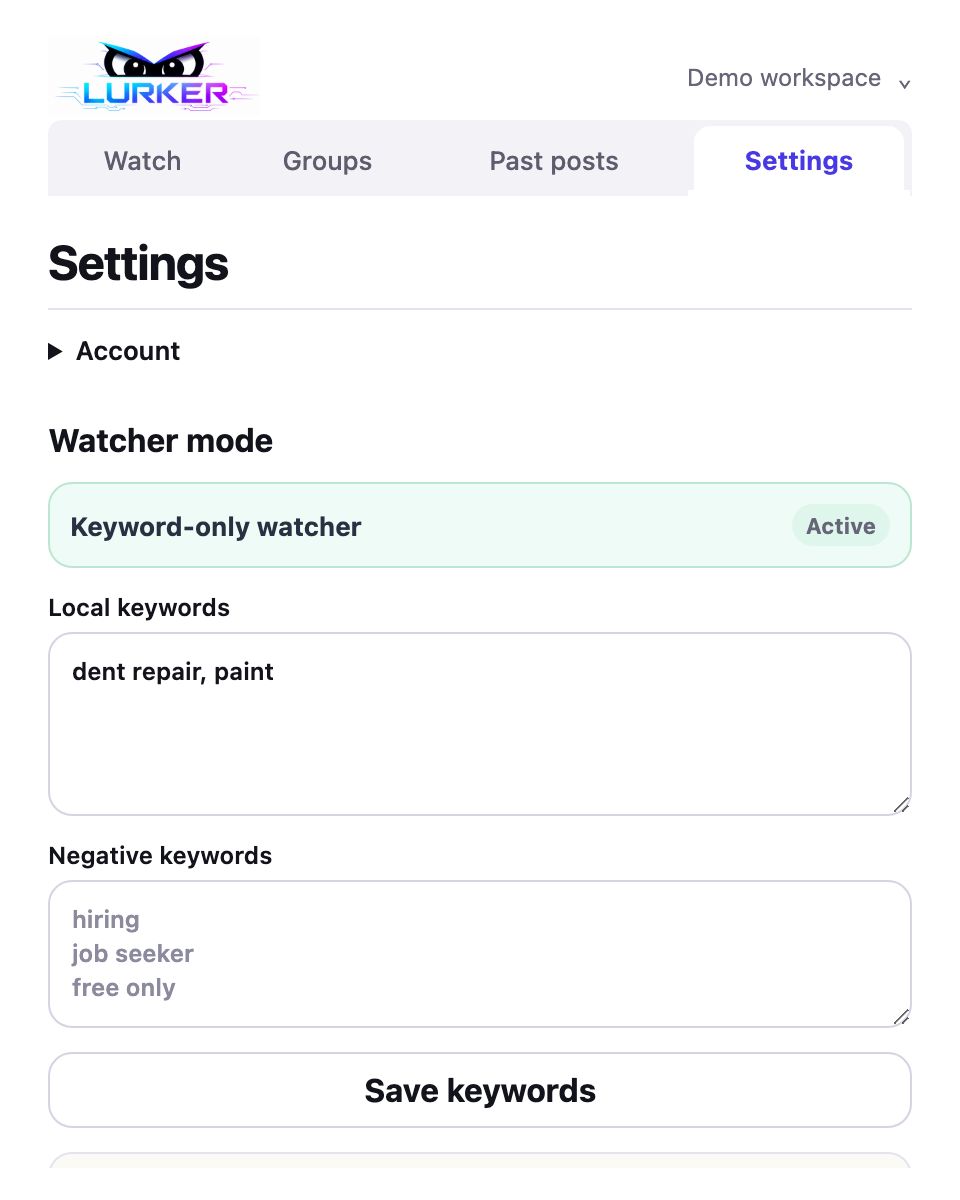
3. Start the watcher and verify it is running
For group-tab monitoring, select the group in Chrome and turn on Live watch this open group. Follow the watcher setup steps for your installed extension. Keep the computer awake, Chrome running, and the Facebook tab used by the watcher open.
Check that the watcher heartbeat advances and review the last scan and decision. Saved keywords or an enabled group alone do not prove collection is running. If it is stale, follow the recovery steps. An active watcher still cannot guarantee every relevant post: Facebook controls what loads, and tabs or login sessions can stop working.
4. Review matches and check notification delivery
Open your Lurker inbox, read the matching content, and visit the original Facebook post before deciding to respond. Opportunity notifications depend on your workspace’s available notification controls and device permissions; check Settings and verify delivery on your device. Do not assume that a saved match means an alert was delivered.
The iPhone app lets you review saved opportunities with the same account. It does not monitor Facebook independently when your desktop watcher is unavailable. Reply assistance depends on your plan and availability. Lurker never posts, comments, or messages for you.
Can you find older Facebook group posts?
With extension 0.1.20 or later, Past posts offers a separate historical scan. Choose UTC dates, keyword-only or eligible AI review, and post, time, and analysis budgets. Keep the group visible while the scan runs.
Historical matches save to the inbox without individual email or push alerts or automatic drafts. A selectable date range is not guaranteed retrieval, and the scan is not a complete archive. Read the historical scan guide for limits and stop reasons.
Make the workflow useful without overpromising
- Review match quality and adjust broad or overly restrictive terms.
- Check watcher health after sleep, extension updates, or Facebook changes.
- Respect group rules and reply only when your service fits the request.
- Do not treat a match as a guaranteed lead, sale, or permission to contact someone.
Lurker does not automate Facebook login or responses, but it cannot promise that Facebook will never restrict an account.
Read the Facebook group monitoring FAQ → · Watch the tutorials → · Set up your first watcher →
Ready to try one group? How to set up and test Facebook group keyword alerts.