
Manage Lurker with your own AI agent
Coming soon: manage Lurker through Engage. Sync monitoring rules, manage selected watchers, and inspect browser-specific status—with explicit permission in your browser.
Bring your assistant to your Facebook group workflow
We are building an Engage MCP connection for Lurker so a compatible assistant can help manage the extension you already use. MCP is the connection that lets an assistant work with authorized product tools.
OpenAI review and rollout work are still in progress. This is a preview of the intended workflow, not an announcement of public ChatGPT availability. Claude and other assistants also need a compatible, authorized connection; support must be verified in each client. No release date is promised.
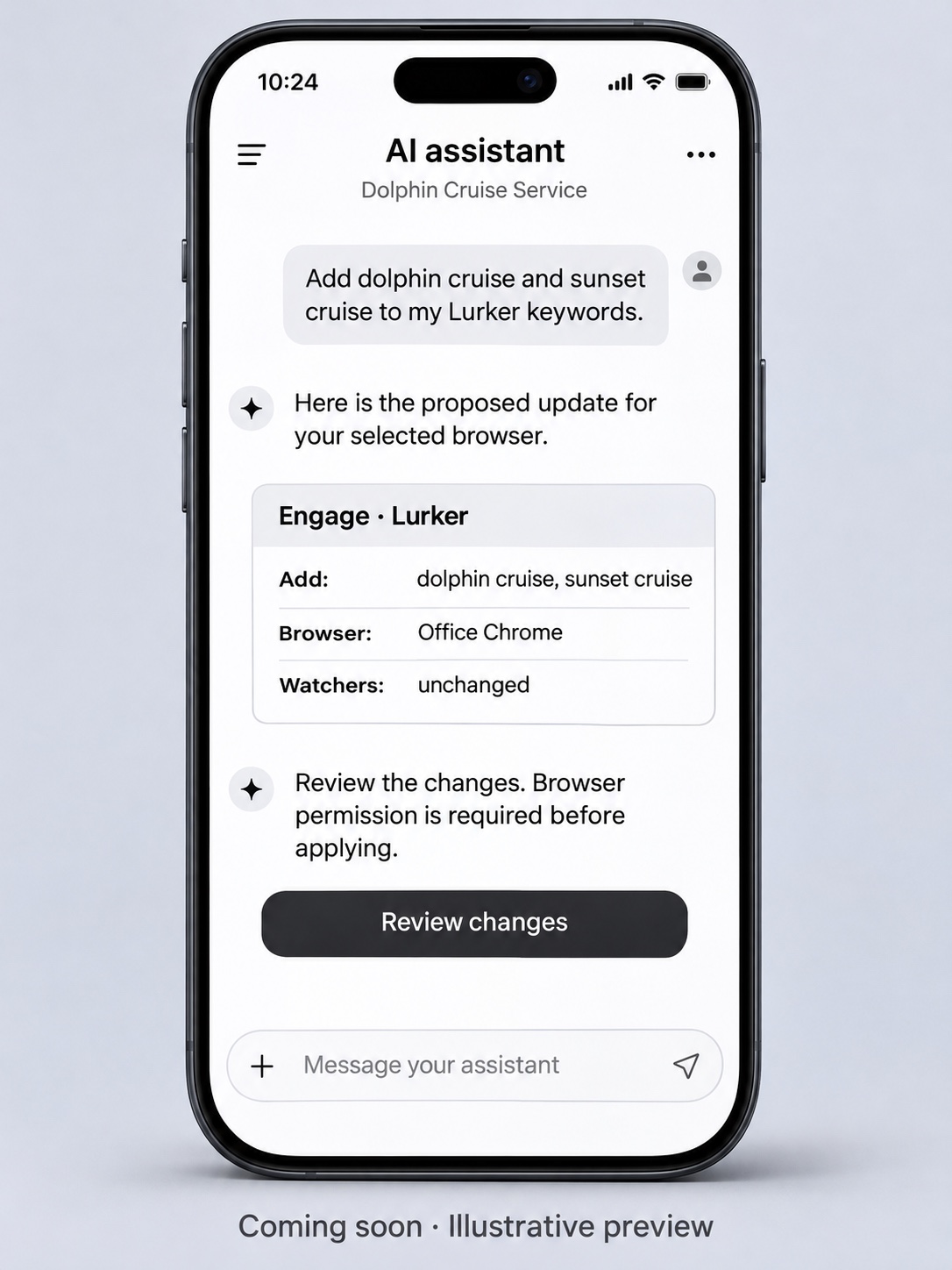
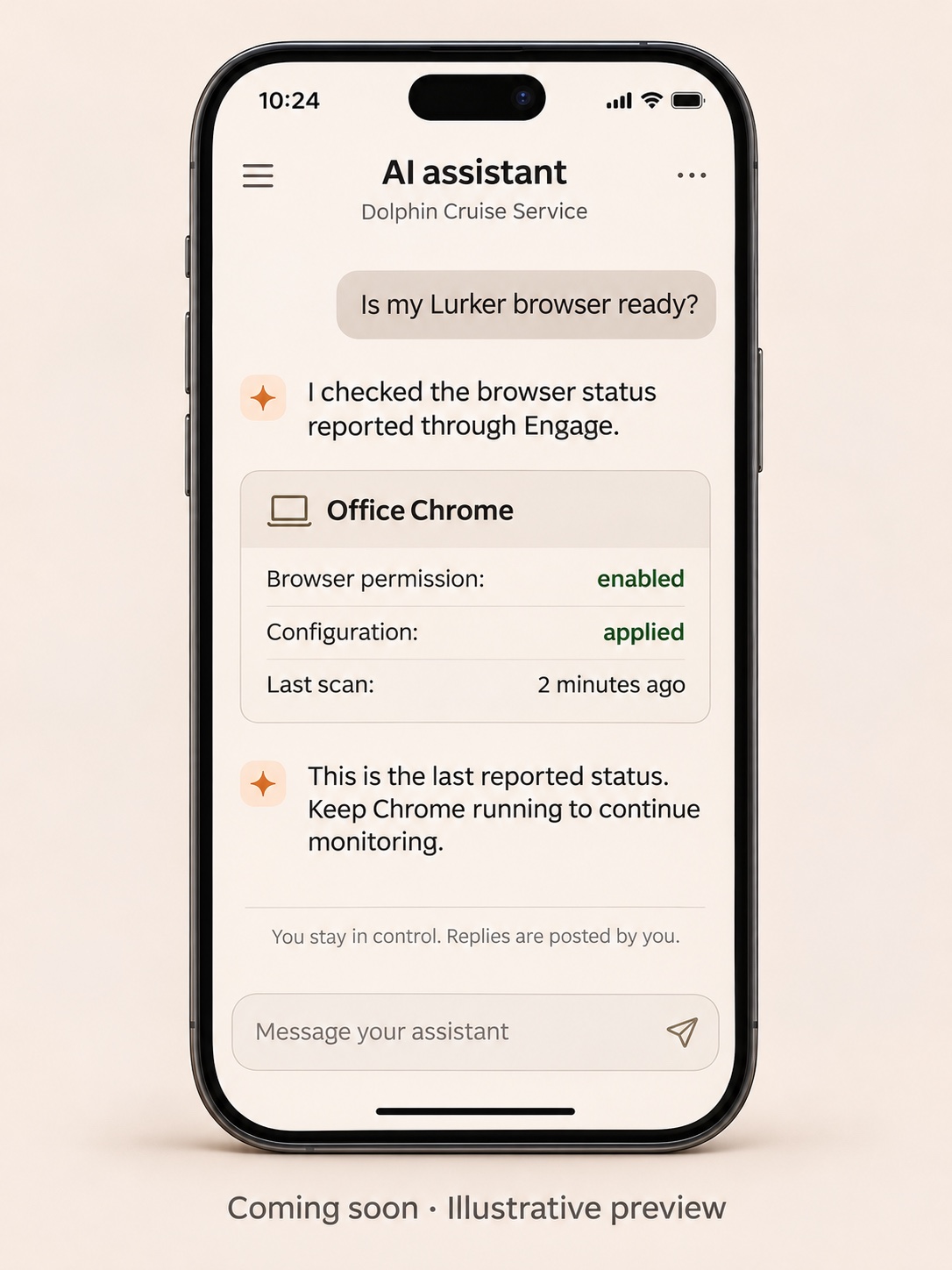
A conversation with your own assistant
Preview the planned workflow: review keyword changes before applying them, then inspect the status reported by your selected browser.
What you can do with ChatGPT or Claude today
Share Lurker’s written setup guide with your assistant. It can help choose service keywords, explain the setup steps, and interpret status text you choose to share. You complete any steps its tools cannot perform. A conversation with an assistant does not itself connect to your extension.
Some authorized connections expose Lurker setup and watcher-health reads. Availability varies by account and tool publication. If your assistant cannot access those tools, use the manual setup guide; do not assume a saved configuration was delivered to Chrome.
A prompt you can use now
Help me set up Lurker using https://getlurker.com/setup/. Start with my plan’s limits. Suggest positive and negative keywords for my services, explain the changes before I save them, and help me check an advancing watcher heartbeat. Tell me which steps I need to do myself.
What is coming through Engage
- Sync monitoring rules: deliver the approved saved configuration to a selected compatible browser without treating sync as permission to start or stop watchers.
- Manage selected watchers: preview and approve changes for specific group or notification watchers while preserving unrelated tabs.
- Inspect browser-specific status: see which opted-in installation reported, whether its configuration was applied, and when its selected watchers last scanned.
The planned controls require a compatible extension, an enabled workspace, appropriate account permissions, and explicit local browser opt-in. Older extensions continue to use manual steps.
Will Free and Watcher plans be able to use it?
Yes—the planned keyword-management workflow includes Free and Watcher keyword-only accounts, within their existing group and keyword limits. Using your own assistant does not unlock Lurker’s paid AI analysis, company-context replies, or approved-image features. Your assistant provider may have its own account requirements.
Engage is the connector used for this workflow. That does not mean you must buy Lurker’s subscription tier named Engage just to use the planned keyword controls.
You approve the browser and the action
- Connect the supported assistant to the correct authorized workspace when the tools become available.
- Enable control locally in the compatible browser installation you intend to manage.
- Review the proposed keywords, settings, and specific watcher targets before approving an action.
- Verify that the browser applied the change and reported fresh scans. Queued, applied, and actively scanning are different states.
You can revoke local permission. Chrome and the required Facebook tabs must remain available; an assistant cannot provide continuous monitoring when your computer is asleep or offline.
Lurker does not automate Facebook login, group membership, posting, commenting, or messaging. Never share Facebook passwords, cookies, or session files with an assistant.
Get your keyword workflow ready
Start with one group and useful service terms. The same decisions will matter whether you manage them manually or through an authorized assistant.
Read the keyword monitoring guide · Set up Lurker now · Product FAQ